LOAD 1.6.6
Apple Silicon
Build 20260921.311 · macOS 26+
Batched translation, progressive speech and Thai subtitles. Female voice: Premwadee, no Kanya. Thai requires macOS 26.4+ and language assets.
231.8 MB · ZIP
ดาวน์โหลดแอป · หน้าเบา ไม่มีวิดีโอ / Simple download page →
Skip to the guide LOADTHE GUIDE
Video and audio from multiple platforms.
Choose your quality. Let LOAD take it from there.
Installation guide · Thai / English ↗
Not a stable release and not notarized by Apple. Keep your existing app before testing.
These links serve only the new previews. If unavailable, downloads stop; no older-build fallback. Microsoft Edge speech requires internet. Translation accuracy is not guaranteed for every sentence.
Both current packages require macOS 26 or later because of their bundled converter. Some Mac models cannot update to this version.
Extract the ZIP into a separate folder and open only LOAD 1.6.6 Intel Preview. Test content you have permission to use. Report your Mac model, macOS version, selected mode and error message. Do not send activation keys.
Installation guide for the LOAD 1.6.6 release. Use the website language button to switch between Thai and English.
Open Apple menu → About This Mac. Choose Apple Silicon for M-series chips or Intel Preview for Intel processors. Both packages require macOS 26 or later. Thai translation on Apple Silicon requires macOS 26.4 or later.
Choose Download on this website and wait for completion. In Finder, open Downloads and double-click LOAD-1.6.6-AppleSilicon.zip to extract it.
Quit any running LOAD app. Open the extracted folder and drag LOAD.app into Applications. Launch it from there; avoid running the old and new versions together.
This build is not notarized by Apple. If macOS cannot verify the developer, cancel first. Only if you trust the source, open System Settings → Privacy & Security → Open Anyway and follow the prompts. Stop and contact the seller if macOS reports malware or a damaged app.
Existing customers on the same Mac can use their original key. If your license is not shown, enter that key again. New trial users can enter LOAD-TRIAL7 in the activation field. Reinstalling does not restart an expired trial.
Paste a link, choose VIDEO or AUDIO ONLY, select quality and a destination, then choose DOWNLOAD. For first-time Thai translation, finish any system language downloads requested. Loading links and generating dubbed speech require internet access.
Need help? Send the seller your Mac chip, macOS version and the displayed error. Do not include your activation key.
Read Apple’s guide to opening apps ↗Resolution details: 8K = 4320p · 4K = 2160p · 2K/QHD = 1440p · Full HD = 1080p · HD = 720p · SD = 480p
Direct app choices: 4K / 2K / 1080p / 720p / 480p. BEST QUALITY requests the highest resolution available from the source.
Download up to 8K when the source offers it. Choose BEST QUALITY for the best available video resolution from the source; no separate 8K button is needed.
Resolution depends on the clip, website and available source formats. Selecting a higher mode cannot turn 1080p into native 4K or 8K. QuickTime-compatible output may need re-encoding and additional time.
Six clear categories. Choose one, then open its quick-start instructions.
Video
Choose the best available source quality, or select 4K, 2K, 1080p or 720p.
Best Quality preserves source streams; resolution presets may convert for QuickTime. Quality is limited by the source.
See the visual guide ↗Audio
Choose source audio, FLAC, WAV or MP3 for listening and editing.
FLAC and WAV cannot restore detail already lost at the source. MP3 re-encodes the audio.
See the visual guide ↗Queues & clips
Queue up to 20 links, run 1–3 downloads at once, and choose a separate clip range for each link.
The link queue is separate from downloading a whole playlist, available in More Options.
See the visual guide ↗Files & history
Choose a folder, sort by date or channel, and revisit up to 200 download history entries.
Review options before downloading again. Main-screen History is not a complete library of Watch exports.
See the visual guide ↗Editing
Use ProRes options and separate .srt subtitle downloads in your editing workflow.
ProRes uses more space and adds no image detail. Thai/English subtitle availability depends on the source; this option does not create a new translation.
See the visual guide ↗Watch in Thai
Watch offers Thai subtitles, Thai dubbing, and separate dub/BG playback levels.
Availability depends on your Mac, language, captions and online voice service. Playback mix levels are not applied to exported files.
See the visual guide ↗YouTube, TikTok, Facebook and supported platforms. One familiar flow for the videos you want to keep.
Availability depends on website access and video permissions.Choose the highest quality available from the source, or set a resolution that fits your storage and workflow. From everyday viewing to your next edit.
No added source detail. File size varies with the source and format.Switch to audio only and choose a format for listening or your next project. Quality always begins with the source audio.
Converting to FLAC cannot restore detail lost in the source.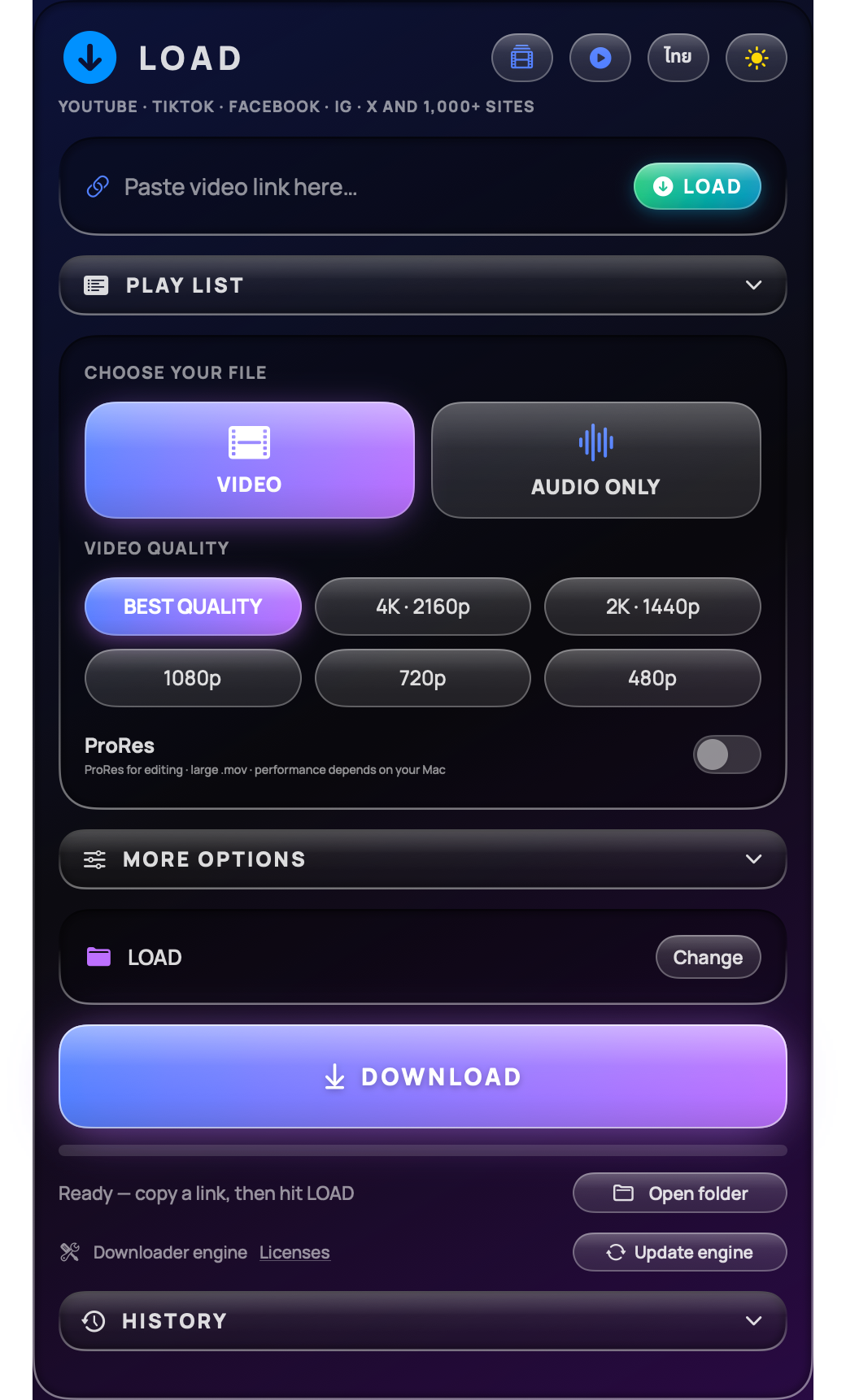


Paste a link. Choose video or audio. Set your quality and download. All in one place.
LIQUID DARK · English


Open any image at full size · Rendered from the app interface with sample data
“Best available” preserves the source streams; some formats need a compatible player. 4K / 1080p limits the resolution and converts when needed for QuickTime.
4K does not add detail to a lower-resolution source.Choose your destination folder before downloading. When finished, use “Open folder” to find your files. Keep video with sound or an audio-only file for your workflow.
The output format depends on your options and the source.A new video starts Thai translation and voice preparation automatically. Listening can begin when the first audio section is ready, before the export is finished.
Open the sound controls and adjust the dub and BG levels independently while watching. Lower BG when the original speech competes with the dub.
Use the caption button to show or hide subtitles, and the subtitle menu to adjust their appearance. Choose Save subtitles for a separate SRT file.
Drag the two triangle markers on the timeline. Choose “Clear selection” to discard the selection. Your current audio continues until you choose “Translate selected range.”
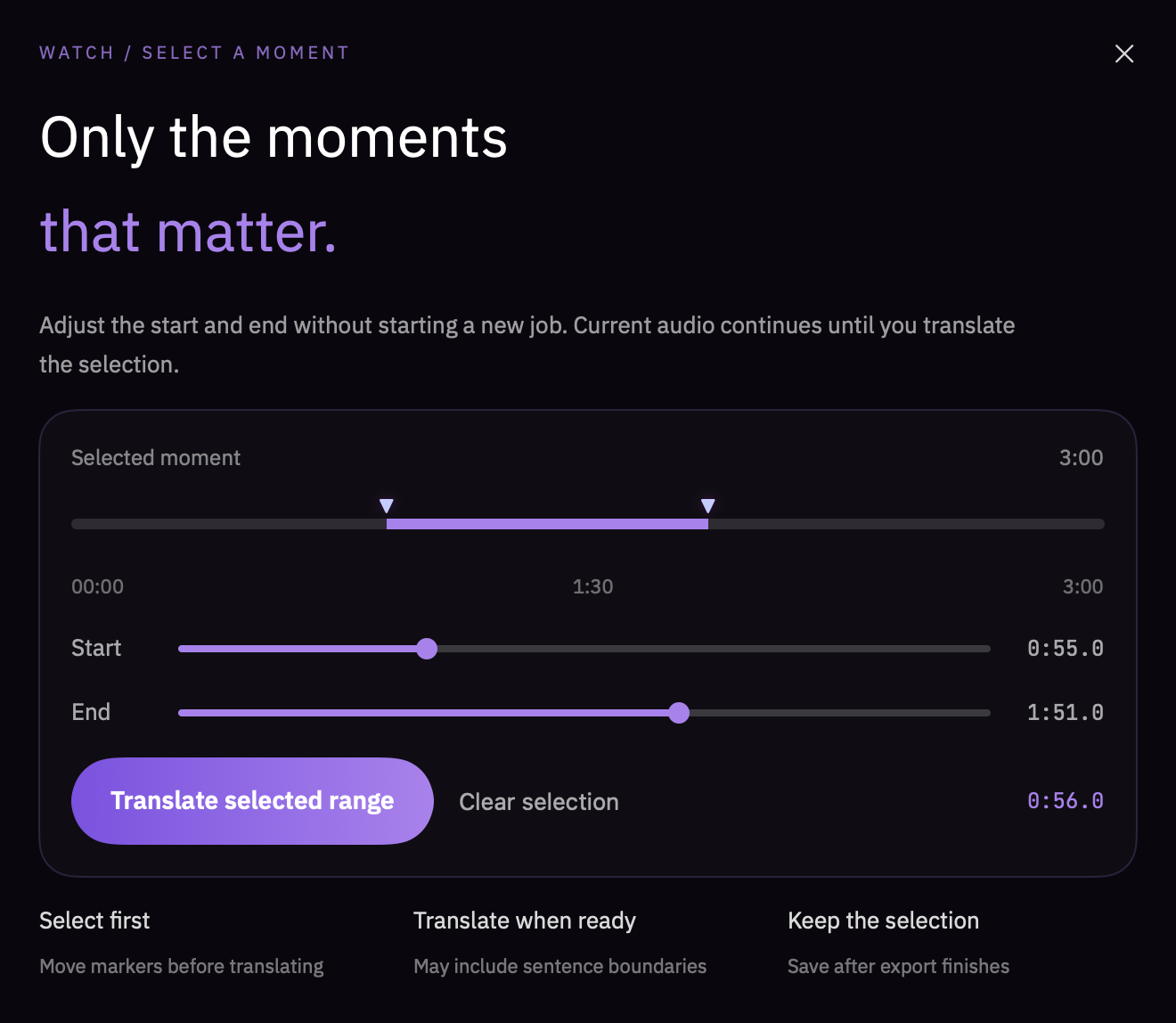
Select firstMoving the markers does not start a new job.
Apply when readyThe selected bounds may expand to complete a sentence.
Keep your selectionWait for export to finish, then save the file.
Yes, to load video links and generate Thai voice. This release sends dubbing text to the Microsoft Edge online voice service. System language assets may need downloading on first use.
Not in every case. This tested translation path requires an Apple Silicon Mac, macOS 26.4 or later, and supported system language assets. Start with English videos that have source captions. Website access and restrictions can affect availability.
Check whether the status says translating, generating voice or exporting. Make sure Thai audio is selected and unmuted. If there is an error, keep the video link and error message. Avoid repeatedly restarting the same job.
BG contains the original soundtrack, including speech and music. It is not a music-only stem. Lower BG to make the Thai dub more prominent.
For installation, trial or troubleshooting questions, open LINE and send me a message.
For faster troubleshooting, include your Mac chip, macOS version and the message on screen. Do not send your activation key.